Chat
Talk to any text model, generate images and videos, run deep research, and work with your files, all in the browser and all on the same balance and prices as the API. Chat is a working assistant, not a demo: a model that behaves well here behaves the same way through the API, because it is the same call.
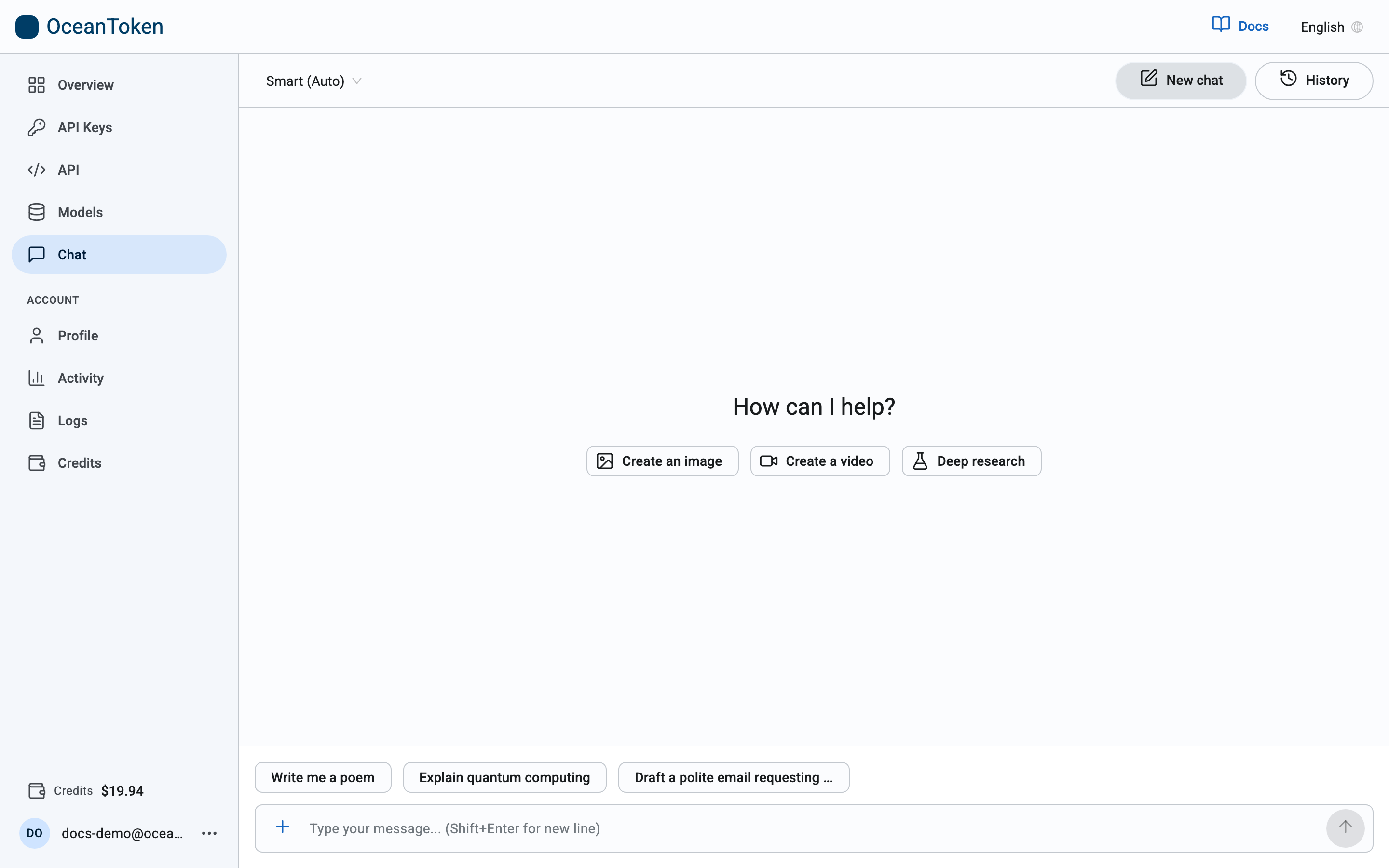
Ask a question
Type and press Enter. The model selector at the top left starts on Smart (Auto), which chooses a model for each message based on how demanding it is; pick a specific model instead whenever you want one. The answer streams in as it is generated, and the footer of each answer shows which model produced it, time to first token, and tokens in and out.
Modes
Choose + at the left of the composer, or one of the quick starts on a new chat.
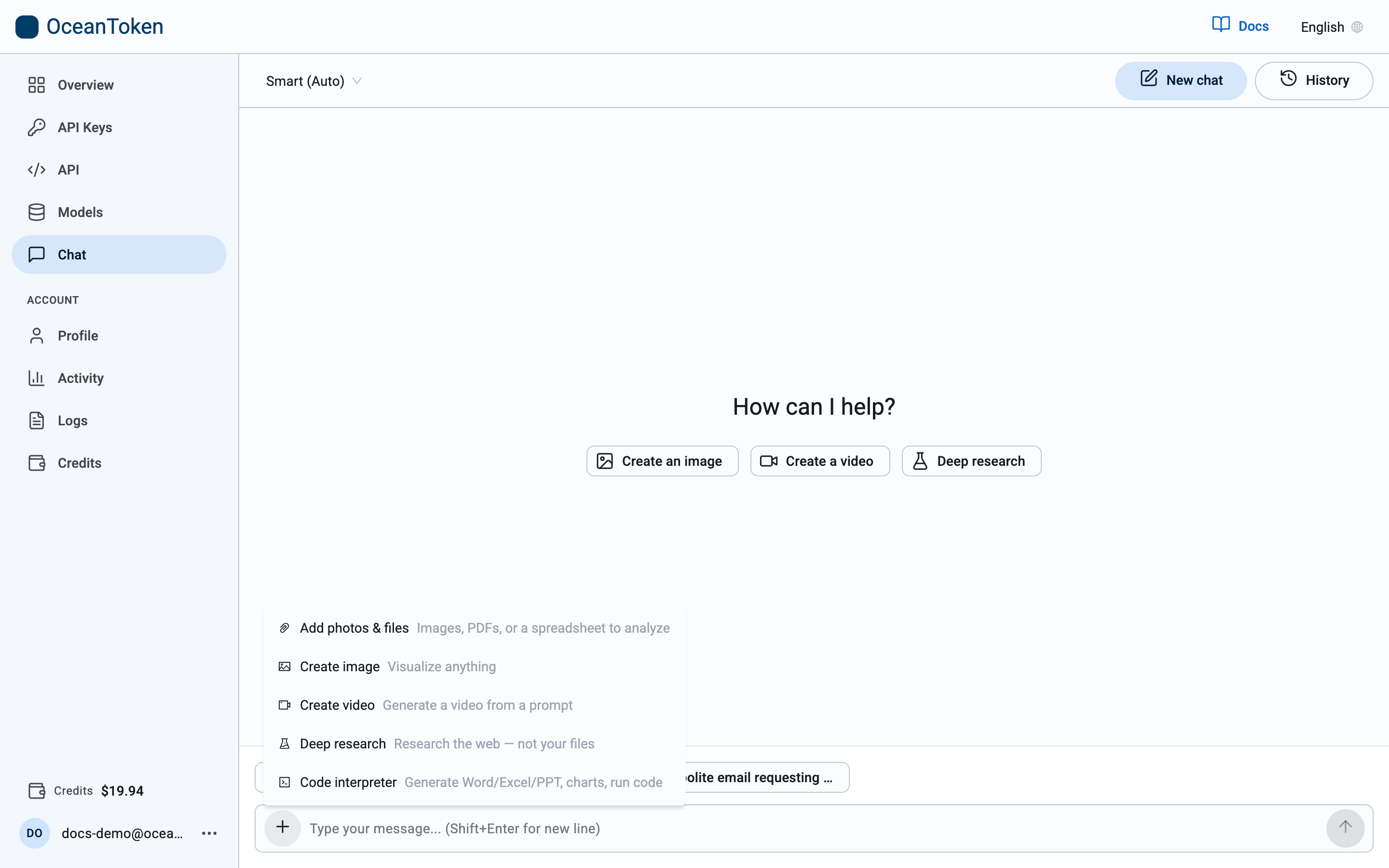
| Mode | What it does |
|---|---|
| Add photos & files | Attach images, PDFs or a spreadsheet and ask about them. Attaching a spreadsheet switches to a model that can analyse it. |
| Create image | Describe an image and get one back. |
| Create video | Describe a video; it renders in the background and you are told when it is ready. |
| Deep research | A cited report researched from the web. Slower, but thorough. |
| Code interpreter | Have the model run code and produce Word, Excel or PowerPoint files and charts. |
A mode shows as a chip in the composer; the × on the chip returns to a normal chat.
Create image
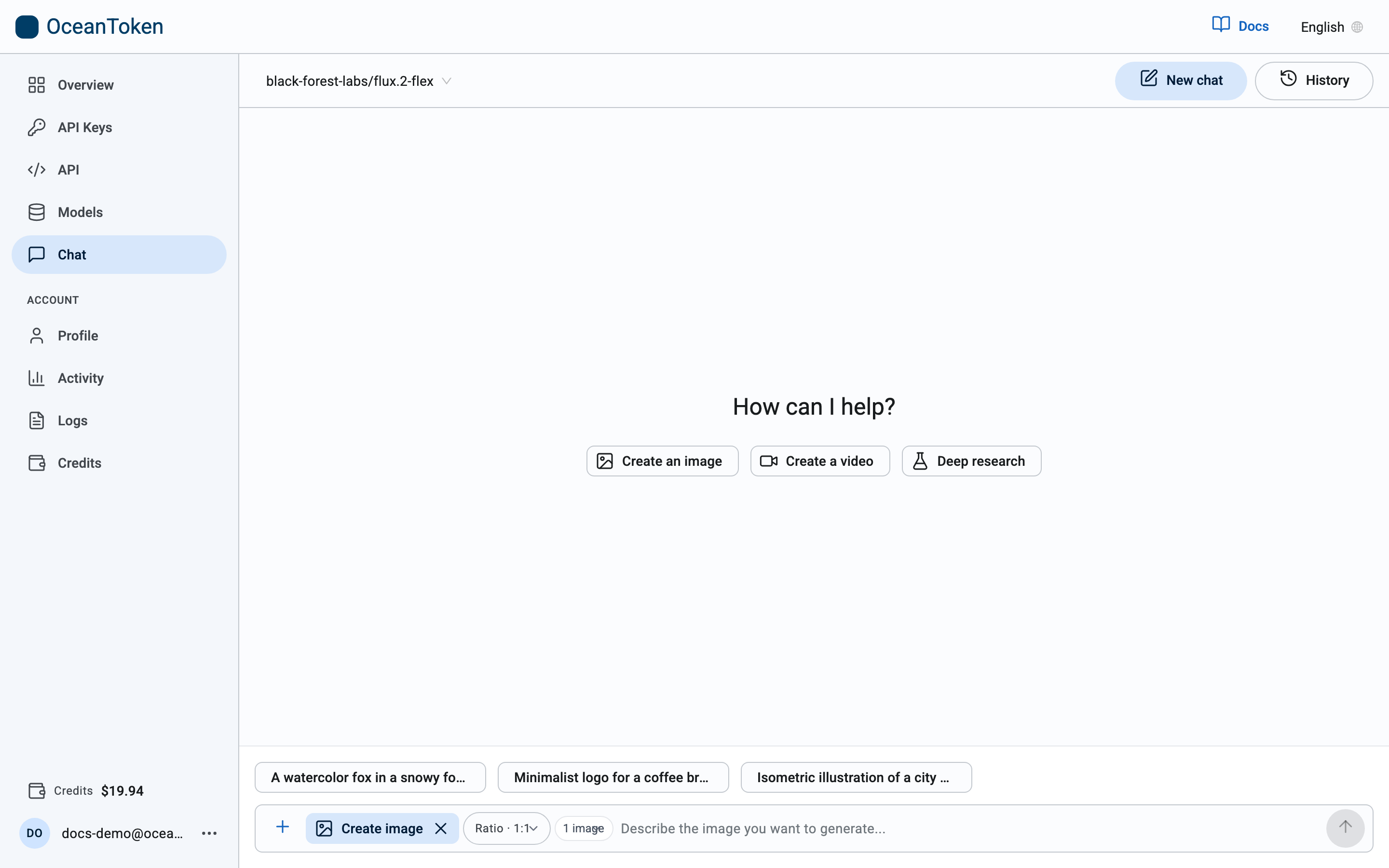
The model selector switches to an image model; change it to any other image model. Set the Ratio (square, portrait or landscape), how many images to make at once, and, where the model offers them, the Quality and Resolution tiers. Then describe the image.
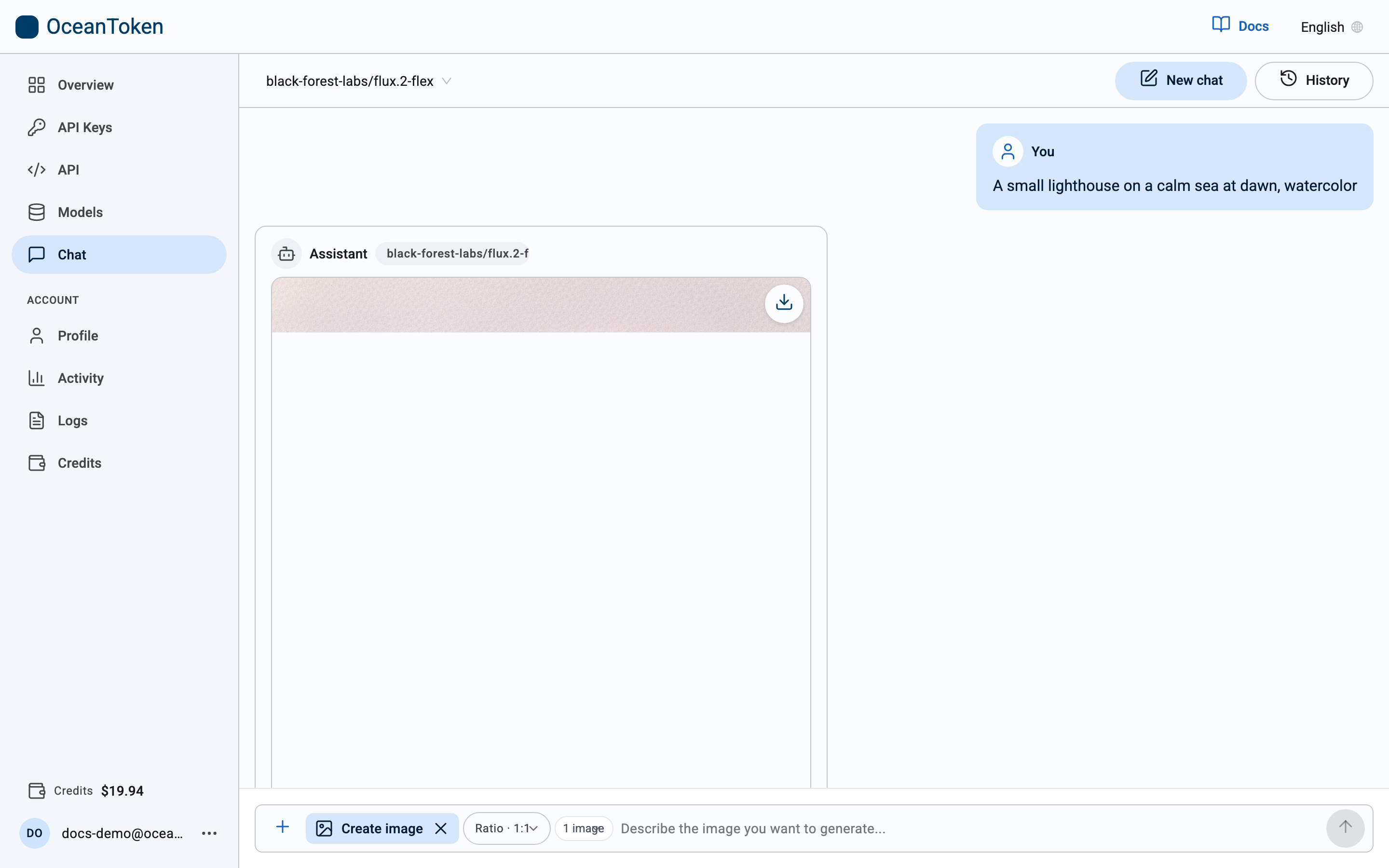
Each image has a download control. To edit an image instead, attach it and describe the change: the placeholder switches to Describe how you want to edit the attached image.
Create video
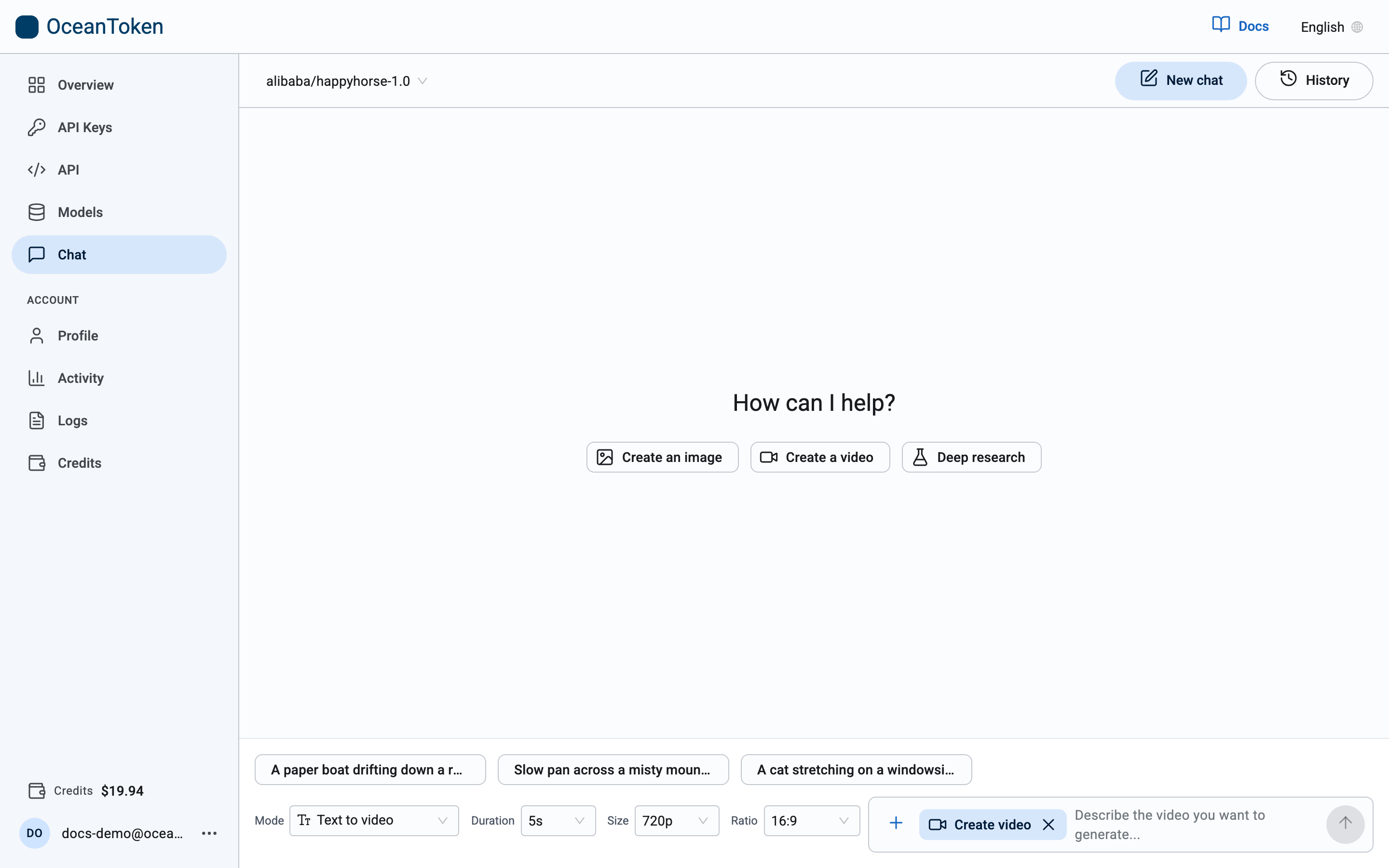
Pick a video model, then set Mode (text to video, or start from a first frame, first and last frame, or reference images, video and audio, depending on what the model supports), Duration, Size and Ratio, and describe the video. Rendering takes minutes, so the job runs in the background: keep working, and the Background tasks tray tells you when the video is ready. The estimated cost is held against your balance while it renders and settled when it finishes.
Deep research
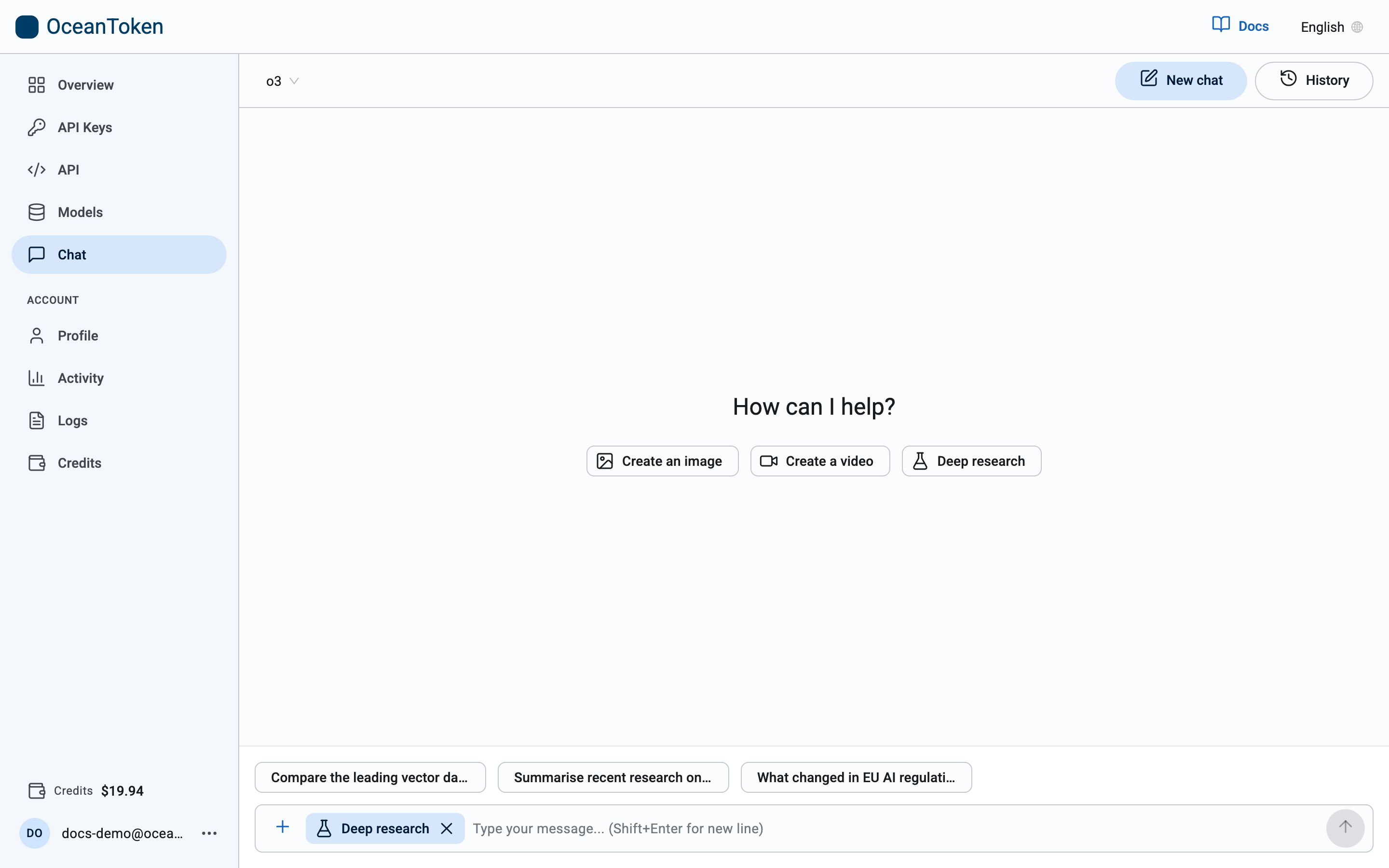
State the topic. Before starting, the assistant may ask a few clarifying questions; answer them or skip to use defaults. Research runs in the background for several minutes, browsing the web and writing a report with sources, and notifies you when it is complete. Like video, its estimated cost is held while it runs.
Add photos & files
Attach images or PDFs to ask about them, or a spreadsheet to have it analysed. You can also drop a file onto the composer. Files cannot be attached while an image, video or research mode is active; switch back to chat first.
Conversations
Conversations are saved to your account. New chat starts one; History lists them, so you can continue one from another device, and each conversation's menu offers Rename, Export and Delete.